Screen recording · 9 min read
The best free screen recorders in 2026
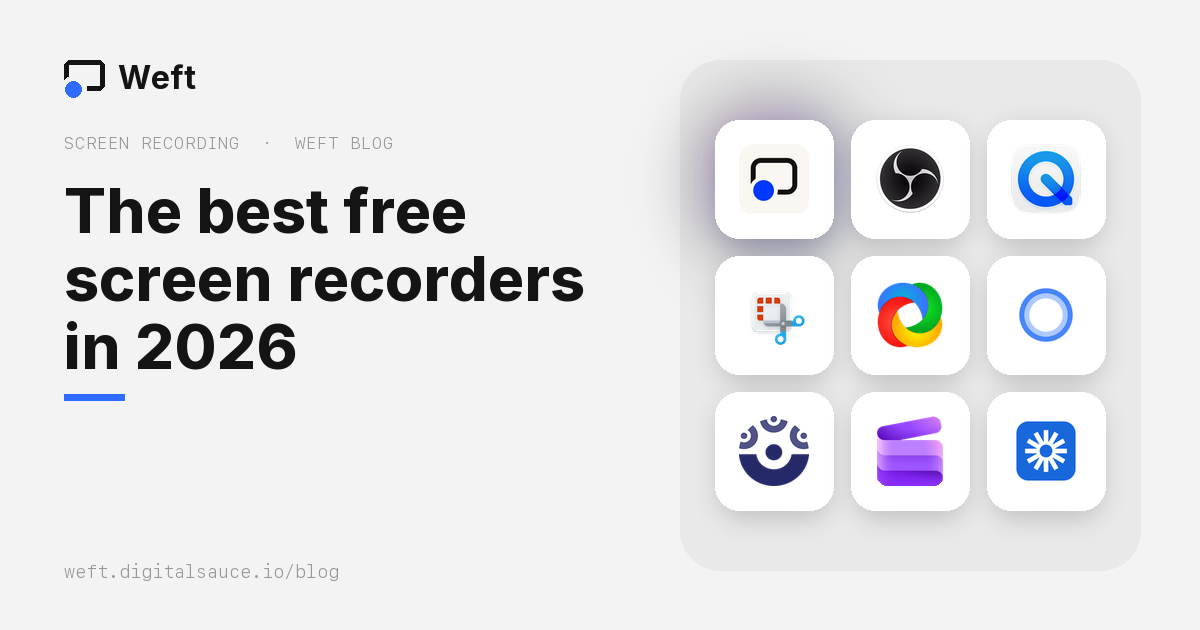
The short answer: for recording your screen with your webcam and getting a file with no watermark and no time limit, use OBS Studio if you’re happy to install and set it up, or Weft (which we make) if you want it in your browser with an editor built in; its small “Made with Weft” mark is on by default and switches off in one tap. Your computer’s own tools, Shift-Command-5 on a Mac and Snipping Tool on Windows 11, are fine for quick clips without a webcam. Many “free” recorders cap you at 5 to 15 minutes, keep your video in their cloud, or watermark it.
Below are the free screen recorders worth knowing in October 2026, what their free plans really include, and which to pick.
We make Weft, so it’s on this list. Each tool’s limits come from its own pricing and help pages, linked at the end, checked on 16 October 2026. Free plans change often, so check before you rely on one.
Free screen recorders compared
| Recorder | Runs on | Free time limit | Watermark | Webcam | Your recordings |
|---|---|---|---|---|---|
 Weft | Browser on Windows, Mac, Linux, ChromeOS | None | Optional, off in one tap | Yes, circle or cutout | MP4 in a folder you choose |
 OBS Studio | Windows, Mac, Linux | None | No | Yes | Local file |
 macOS (Shift-Command-5) | Mac | None | No | No | .mov on your desktop |
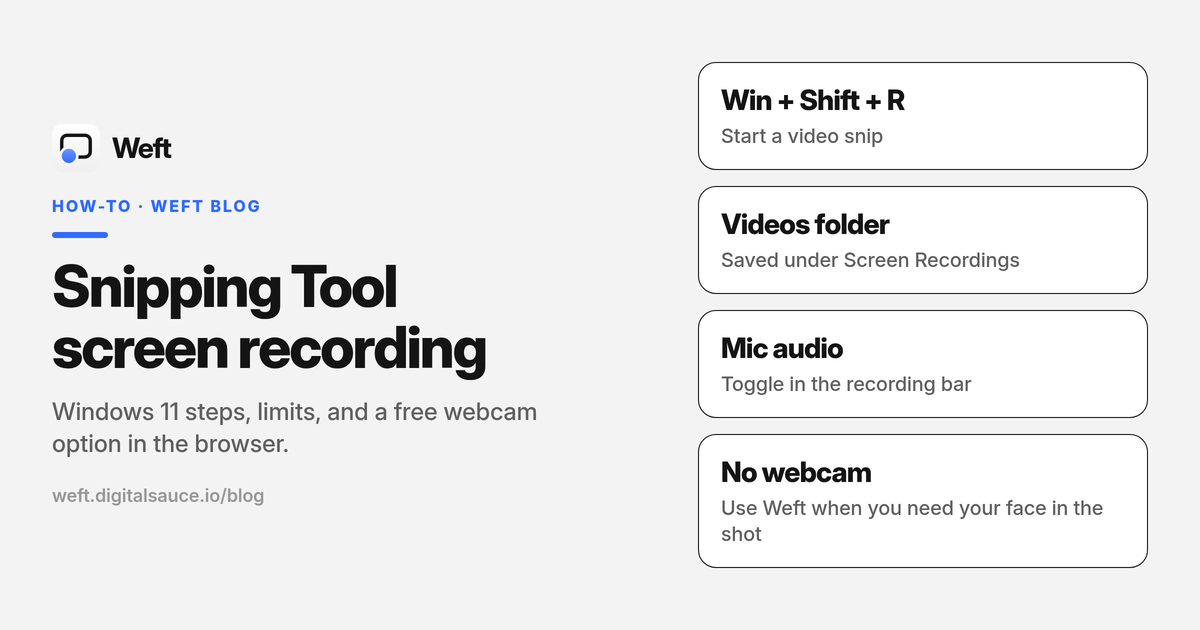
 Snipping Tool | Windows 11 | None documented | No | No | MP4 in Videos |
 Xbox Game Bar | Windows 10, 11 | Set in Settings | No | No | MP4 in Videos\Captures |
 ShareX | Windows | None | No | No | Local file |
 Cap | Mac, Windows, Linux | None locally; 5 min share links | No | Yes | Local, or uploaded in Instant Mode |
 ScreenPal | Windows, Mac, Chromebook, phone | 15 minutes | No | Yes | Save to device, or its hosting |
 Clipchamp | Browser, Windows | 30 minutes | No | Yes | Download as a file |
 Loom | Windows, Mac, Chrome, phone | 5 minutes, 25 videos | Branding on its player | Yes | Loom’s cloud only (no download on free) |
The best free screen recorders
Weft Best in the browser, with an editor
- Free, no time limit
- Optional watermark
- Any desktop browser
- No account
- Nothing uploaded
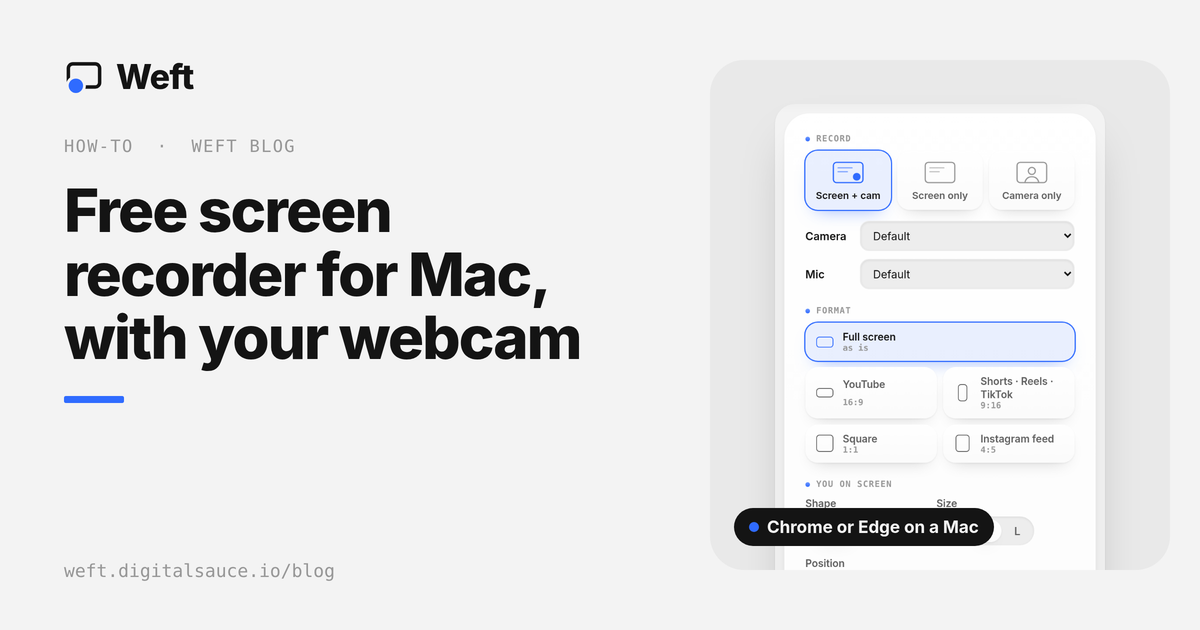
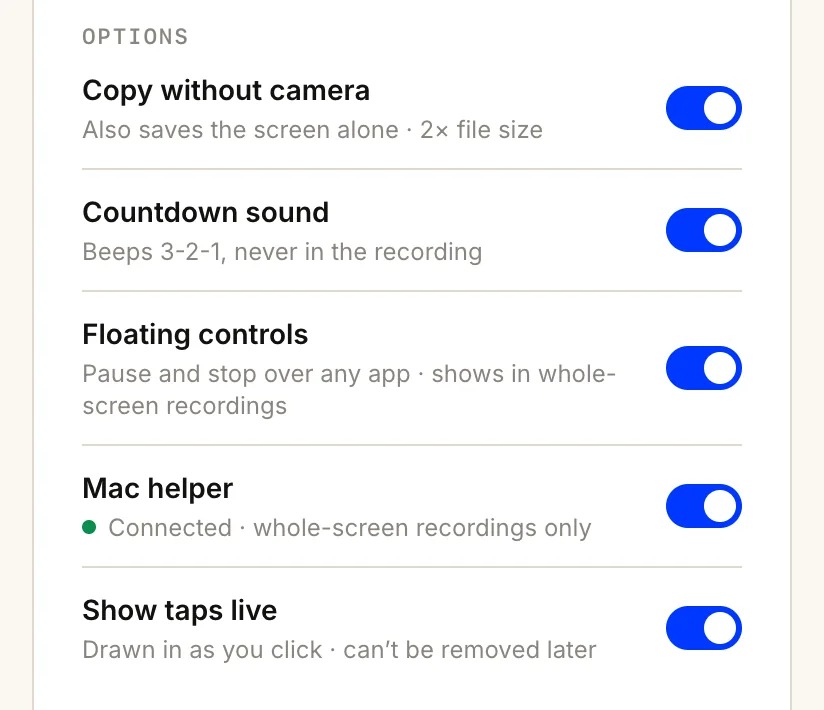
Weft records your whole screen, a window or a browser tab with your webcam in a circle, or cut out from your background. It saves an MP4 straight into a folder on your computer. You can record straight into 9:16 for Reels, TikTok and Shorts, film in named sections, and save a second copy without your camera. A built-in editor trims, captions, blurs, and adds click markers and zooms. On a Mac, the free Weft Helper records your clicks so the editor can place them for you.
The catch: it needs Chrome or Edge for the full experience (other browsers download the file instead of saving to a folder), it can’t record on a phone, and it captures system audio only where the browser offers it.
Open the studio · How to record your screen and webcam · Recording a lesson for students
OBS Studio Best for full control and streaming
- Free, open source (GPL)
- Windows · Mac · Linux
- No account
- Local files
The standard free recorder and live-streaming app. You build scenes from sources (screens, windows, webcams, capture cards, images) and arrange them however you like, with no limits and no watermark.
The catch: it takes setup and learning, and it has no editor. Trim and caption the result in something else.
macOS Screenshot and QuickTime Best built-in option on a Mac
- Built into macOS
- No watermark
- Simple trim
Press Shift-Command-5 to record the whole screen, a window or an area. QuickTime’s File › New Screen Recording opens the same tool. Recordings save as .mov files on your desktop, and you can trim them afterwards.
The catch: no webcam overlay, and older macOS versions can’t record your Mac’s own sound without extra software.
Apple: how to record the screen on Mac · Free screen recorders for Mac, compared
Snipping Tool Best built-in option on Windows 11
- Built into Windows 11
- MP4
- Mic and system audio
Windows 11’s capture app records an area or the full screen to MP4, with your microphone and system sound, and saves to your Videos folder. It’s the quickest way to grab a clip on Windows.
The catch: no webcam overlay and very little editing. Microsoft points you to Clipchamp for that.
Xbox Game Bar Built in on Windows, for games and apps
- Windows 10 and 11
- Press Win+G
- MP4
Press Win+G to record the game or app in front of you. Clips save to Videos\Captures as MP4.
The catch: it records one app window at a time, and it’s widely reported that it won’t record the desktop or File Explorer. Use Snipping Tool for those.
ShareX Best free capture toolbox on Windows
- Free, open source (GPL)
- Windows
- No account
A power-user tool for screenshots, screen recordings (MP4 or GIF) and automating what happens after each capture. Recordings save locally by default, and uploading to dozens of services is there if you switch it on.
The catch: Windows only, no webcam overlay, and a busy interface.
Cap Open-source Loom alternative
- Free for personal use
- Mac · Windows · Linux
- No watermark
Cap records either locally (Studio Mode, with no time limit and an editor with zooms and captions) or straight to a share link (Instant Mode). It’s open source and can be self-hosted.
The catch: the free tier is for personal use only, so commercial use needs a paid licence, and free share links are capped at 5 minutes.
ScreenPal Beginner-friendly, with a free editor
- Free plan
- 15-minute recordings
- No watermark
- No account to record
Formerly Screencast-O-Matic, ScreenPal records your screen and webcam on Windows, Mac and Chromebooks, and its free plan saves unlimited recordings to your device with no watermark. Basic editing (crop, cut, text, voiceover) is included.
The catch: 15 minutes per recording, system audio only on paid plans, and 720p playback on free.
Clipchamp Record and edit, from Microsoft
- Free with a Microsoft account
- Browser · Windows
- 1080p, no watermark
Clipchamp’s editor has a screen and webcam recorder built in. Free exports go up to 1080p with no watermark, and you can export as many as you like.
The catch: recordings made inside the editor are limited to 30 minutes, you need a Microsoft account, and it supports Chromium browsers only.
Loom Best for share links, not files
- Free plan
- 5 minutes, 25 videos
- 720p
- Cloud only
Loom, now part of Atlassian, is built around sending a link: you record your screen and camera, and it uploads as you go. That’s ideal for quick messages to a team.
The catch: the free plan limits videos to 5 minutes and 25 per person at 720p, and free users can’t download their videos at all. Pick it for links, not for making files to post elsewhere.
“Free”, with a catch
These come up in every search for a free screen recorder. Their free versions are trials more than tools:
- Screencastify (Chrome): the free plan allows 10 recordings of up to 30 minutes, adds a watermark, and saves to Google Drive or its cloud. MP4 export is a paid feature.
- Bandicam (Windows, and now Mac): the free version of Bandicam 2027 limits each recording to 5 minutes (10 in older versions), and puts a watermark on edited exports.
- Camtasia: Camtasia Online records 5 minutes without a watermark in the browser. The free desktop editor has no length limit but watermarks what you export.
- Screen Studio (Mac): a polished paid app. You can record and edit without a plan, but you can’t export.
- Kap (Mac): free and open source, but its last release was in 2022.
Which free screen recorder should you use?
| You want to… | Use |
|---|---|
| Record screen and webcam, then trim and caption, with nothing to install | Weft |
| Stream, or build complex scenes with several sources | OBS Studio |
| Grab a quick clip with no webcam | Shift-Command-5 on a Mac, Snipping Tool on Windows |
| Record a game | Xbox Game Bar, OBS Studio |
| Send a teammate a quick link | Loom, Cap |
| Post on Reels, TikTok or Shorts | Weft, recording straight into 9:16 |
| Keep recordings off anyone’s servers | See private screen recorders |
Record your screen and webcam now: free, no watermark, no time limit, saved to your own folder.
Open WeftRecorded something and need to edit it? See free video editors with no watermark.
Questions people ask
What is the best free screen recorder with no watermark?
OBS Studio if you want full control and don’t mind setting it up, and Weft if you want to record in your browser with your webcam and edit in the same place. Both are free with no time limit. OBS adds no watermark; Weft’s small mark switches off in one tap.
Is there a free screen recorder with no time limit?
Yes: Weft, OBS Studio, ShareX, Cap’s local recording, and the recorders built into macOS and Windows have no time limit. ScreenPal’s free plan stops at 15 minutes, Clipchamp at 30, and Loom’s at 5.
Can I record my screen and webcam together for free?
Yes, with Weft, OBS Studio, Cap, ScreenPal or Clipchamp. The recorders built into macOS and Windows don’t add a webcam overlay. See our guide to recording your screen and webcam at the same time.
Does Loom’s free plan let me download videos?
No. Atlassian’s help pages say users on Loom’s free Starter plan can’t download videos. Recordings stay in Loom’s cloud and are shared as links.
How do I record my screen on Windows 11 for free?
Open Snipping Tool, switch to video, select an area and press Start. Or press Win+G for Xbox Game Bar to record a single app or game. For your webcam too, use Weft in Chrome or Edge, or OBS Studio.
Sources
- OBS Studio, ShareX, Cap pricing
- Apple: record the screen on Mac; Microsoft: Snipping Tool; Microsoft: Xbox Game Bar recording
- ScreenPal plans; Clipchamp pricing and recording length
- Loom pricing; Atlassian: downloading Loom videos
- Screencastify pricing; Bandicam free version; Camtasia free options; Screen Studio; Kap on GitHub
- Checked 16 October 2026.
Ask AI about this guide
Opens your assistant with a question about this page, answered from it.