Privacy · 8 min read
Private screen recorders that never upload your videos
The short answer: a private screen recorder saves your video as a file on your own computer and never sends it anywhere. OBS Studio, the recorders built into macOS and Windows, ShareX and Weft (which we make) all work that way. Tools built around share links, like Loom and Screencastify, upload your recording to their cloud by default. That’s fine for a quick message, and a problem for client work, unreleased products, or anything with personal data on screen.
We make Weft, so it’s on this list. Claims about other tools come from their own documentation, linked at the end, checked on 16 October 2026. Settings and plans change, so check them yourself before recording anything sensitive.
Why it matters where a recording goes
A screen recording catches everything on the screen: email addresses in a sidebar, a customer’s name in a dashboard, an API token in a terminal, a product that hasn’t launched. Once it’s uploaded to a recording service, that copy lives on someone else’s servers, under their retention rules and their security, and it may be shared by link. For many teams that’s an acceptable trade for convenience. For others, such as agencies under NDA, healthcare and finance, or anyone recording an unreleased product, the safest recording is one that never leaves the machine.
Where each recorder puts your video
| Recorder | Where recordings go by default | Cloud involved? | Account |
|---|---|---|---|
 Weft | An MP4 in a folder you choose | Never. There’s no server that receives video | No |
 OBS Studio | A local file | Only if you stream to a service you set up | No |
 macOS (Shift-Command-5) | A .mov on your desktop | No | No |
 Snipping Tool | An MP4 in Videos | No | No |
 ShareX | A local file | Optional uploads, off by default | No |
 Kap | A local file | Optional sharing plugins | No |
 Cap | Local in Studio Mode | Instant Mode uploads; can be self-hosted | For Instant Mode |
 Screen Studio | Saved on your Mac | Optional share links (paid app) | To export |
 ScreenPal | Save to device, or upload to its hosting | Your choice | No, to record |
 Loom | Loom’s cloud, as a share link | Always | Yes |
 Screencastify | Google Drive or Screencastify’s cloud | By default | Yes |
Private screen recorders worth using
Weft Private by design, in the browser
- Free
- No account
- No backend
- Webcam and editor
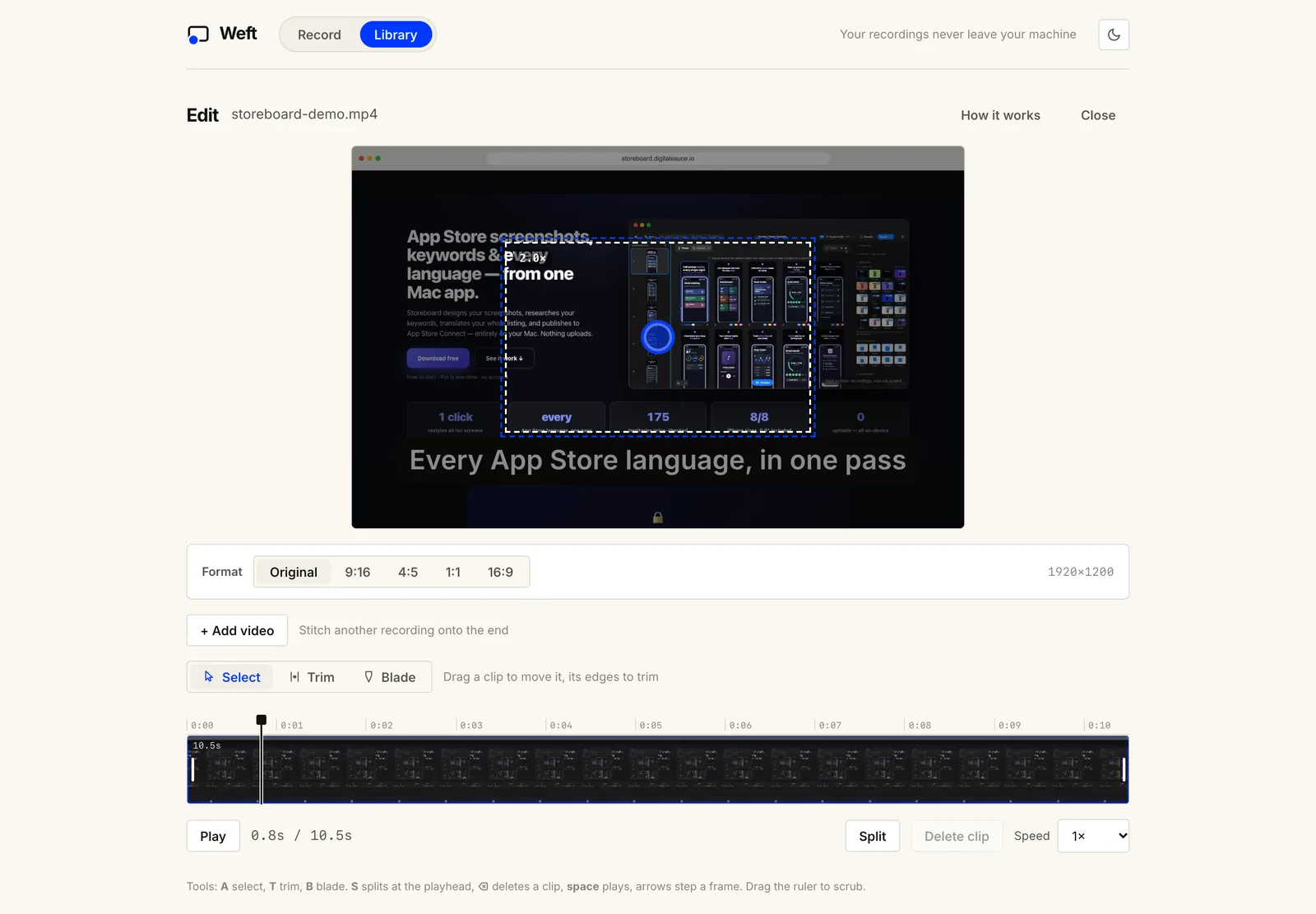
Weft has no server that receives video. Recording, editing, encoding and saving all happen in your browser, and finished MP4s are written straight into a folder you pick. The background-removal model for the cutout camera is served from Weft’s own site and runs on your device, rather than coming from a third-party CDN. The editor’s blur box hides anything private before you share, and the optional Weft Helper for Mac talks only to Weft on your own machine.
The catch: there’s no hosting. If you want to send a link, you upload the file yourself, wherever you choose.
OBS Studio Private and powerful
- Free, open source
- Windows · Mac · Linux
- No account
Open-source desktop software that records to local files and has no cloud of its own. You can read every line of what it does. It takes more setup than the others here.
macOS and Windows built-in recorders Already on your computer
- Shift-Command-5 on Mac
- Snipping Tool on Windows 11
- Local files
Both save straight to a local file with no account and no upload. Neither adds a webcam overlay, and editing is limited to a trim.
ShareX Private on Windows, if you leave uploads off
- Free, open source
- Windows
- Local by default
ShareX saves captures locally by default; uploading is something you switch on in its after-capture tasks. Check those settings before recording anything sensitive, since sharing is one of its strengths.
Cap Local, with an optional cloud you can host
- Open source
- Free for personal use
- Self-hostable
Cap’s Studio Mode records locally with no upload. Its Instant Mode uploads for a share link, and you can point that at your own storage or host the whole platform yourself. Commercial use needs a paid licence.
Screen Studio Polished and local, but paid
- Mac only
- Subscription to export
- Saved on your Mac
Screen Studio saves recordings and projects on your Mac and uploads only when you create a share link. It adds smooth zooms and cursor motion automatically. You can’t export without a paid plan.
What to check before recording something sensitive
- Where does the file go by default? Look for a local folder setting, not just a library inside the app.
- Does it need an account? An account usually means a cloud. Not always, but it’s worth asking why it’s needed.
- Are AI features processed in the cloud? Transcription, captions and “magic” edits often send audio or video to a server, even in apps that record locally.
- What’s on screen? Close unrelated tabs and notifications, and record a single window or tab instead of the whole screen when you can.
- Can you blur after the fact? If something slips into shot, a blur box in the editor fixes it before the file goes anywhere. Weft has one built in.
- Who else can open it? A local file is only as private as the folder it’s in. Mind synced folders like iCloud Drive, OneDrive or Dropbox, which upload whatever you save there.
Record privately in your browser: no account, no upload, MP4s saved to your own folder.
Open WeftComparing on more than privacy? See the best free screen recorders for limits and features, and free video editors with no watermark for editing locally.
Questions people ask
Which screen recorders don’t upload my videos?
OBS Studio, the recorders built into macOS and Windows 11, ShareX (with uploads left off), Kap, Cap in Studio Mode, and Weft all save recordings as local files. Loom and Screencastify upload to their cloud by default.
Is Loom private?
Loom stores every recording in its cloud and shares it by link; on the free plan you can’t download a copy at all. Who can view a video depends on its sharing settings. If a recording mustn’t leave your computer, use a local recorder instead. Our guide to free Loom alternatives compares the ones that save a file.
Is a browser-based screen recorder private?
It can be. What matters is where the video goes, not where the app runs. Weft runs in the browser, but recording, editing and saving all happen on your computer, and it has no server that receives video.
How do I hide private information in a screen recording?
Record a single window or tab rather than the whole screen, close anything unrelated, and add a blur box in the editor over anything that slips into shot. In Weft you place the box and set when it starts and ends, and the blur is part of the exported file.
Sources
- OBS Studio; ShareX source (default after-capture tasks); Kap
- Apple: record the screen on Mac; Microsoft: record your screen on Windows 11
- Cap pricing and modes; Screen Studio; ScreenPal plans
- Atlassian: downloading Loom videos; Screencastify: where recordings are saved
- Checked 16 October 2026.
Ask AI about this guide
Opens your assistant with a question about this page, answered from it.