How-to · 6 min read
How to record your screen and webcam at the same time
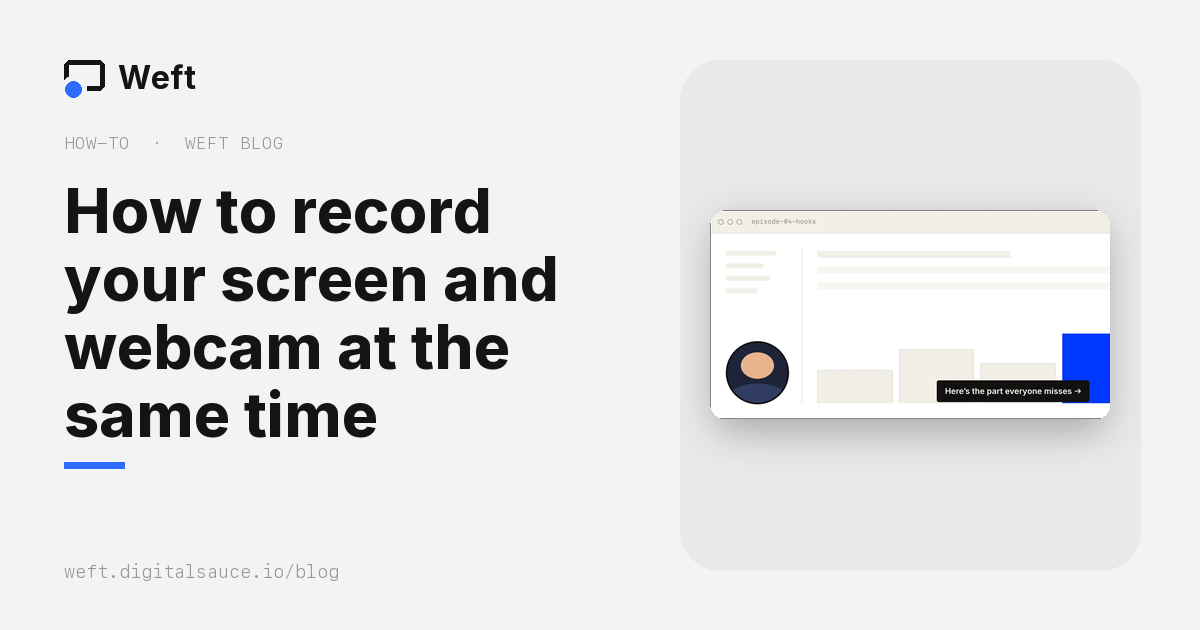
The short answer: open Weft in Chrome or Edge, leave your camera on, press Start recording and pick your whole screen, one window or a browser tab. Your face appears in a circle over the screen, and the finished MP4 is saved to a folder on your computer. It’s free, nothing is uploaded, and the small “Made with Weft” mark in the corner switches off in one tap.
It works the same way on a Mac, a Windows PC, Linux or a Chromebook, because it runs in the browser. It can’t record on a phone or tablet: no mobile browser can capture the screen.
What you need
- A computer with a webcam (built in or USB) and, ideally, a microphone.
- Chrome or Edge for the full experience: recordings save straight into a folder you choose, and the recording controls float over your other apps. Other desktop browsers can record too, but the file arrives as a download.
- No account and no install. Weft is a web page. There’s nothing to sign up for.
Step by step
- Open the studio. Go to weft.digitalsauce.io/app. The first time, your browser asks to use the camera and microphone. Allow both, and you’ll see yourself in the preview.
- Pick a folder under Save to, so recordings land somewhere you’ll find them. (Skip this and they download instead.)
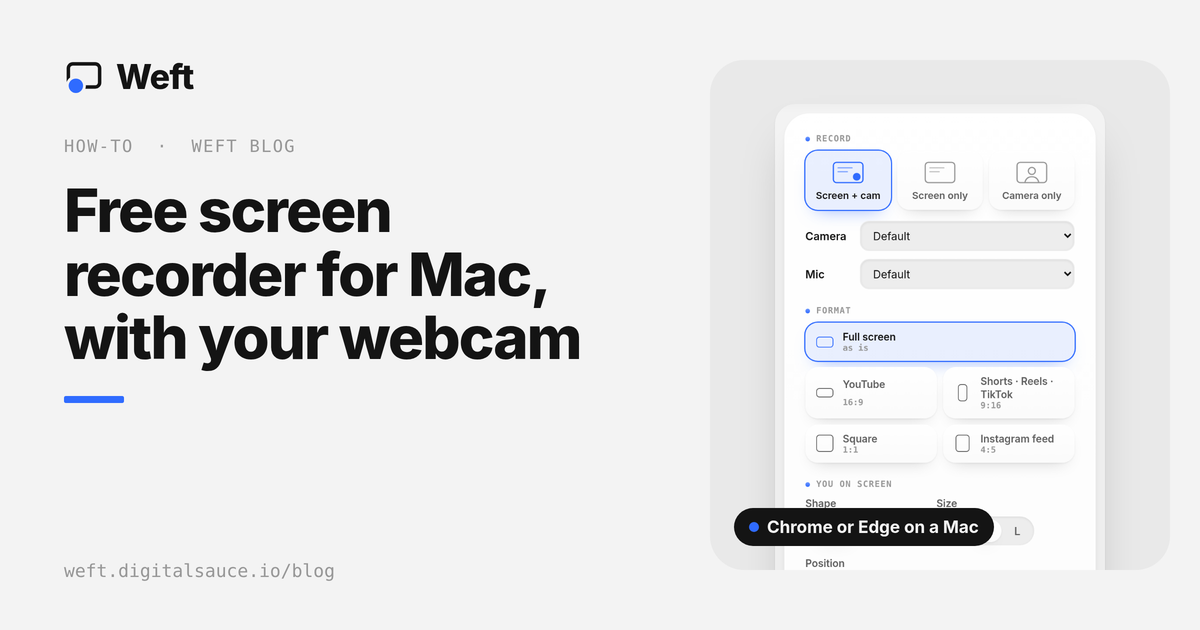
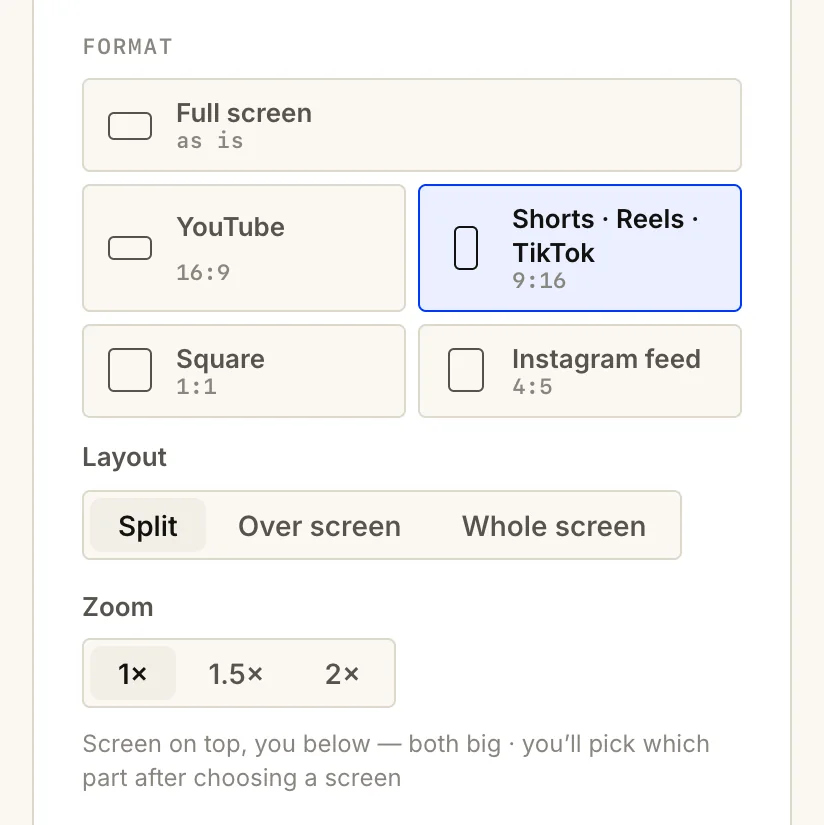
- Choose the shape of the video. Full screen keeps your screen’s own shape, which suits YouTube and tutorials. If the video is for Reels, TikTok or Shorts, choose Shorts · Reels · TikTok instead; how to make vertical screen recordings readable covers that.
- Set up your camera. Pick Circle or Cutout, a size, and a corner. You can drag the bubble to a new spot while you record.
- Press Start recording and choose what to share in the browser’s picker: Entire screen to show several apps, a Window for one app, or a Chrome tab for a website.
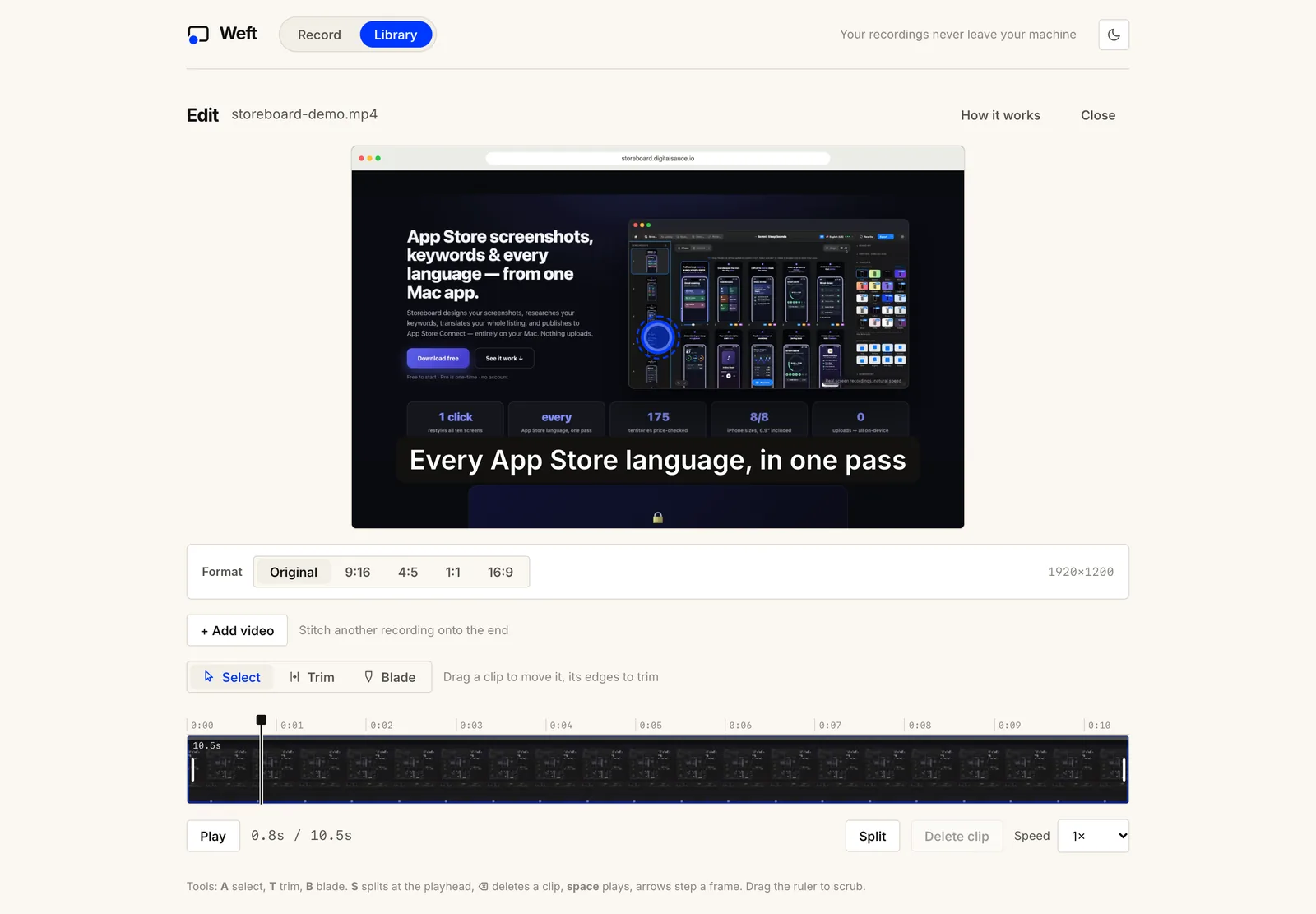
- Count in, talk, stop. A 3-2-1 countdown (with beeps, if you like) gives you a moment to start talking. Pause with the space bar, and stop when you’re done. The MP4 is saved, and Weft offers to open it in the editor.
Circle or cutout?
The circle is the familiar webcam bubble: it’s compact, works with any background and covers the least of your screen. The cutout removes the background behind you so you stand in the corner of the recording, which looks more like a presenter than a video call. The cutout runs on your own computer: a small model (about 11 MB) downloads the first time you use it, and your camera feed never leaves the machine. Edges are cleanest against a plain background, in good light.
Mac, Windows or Chromebook: what’s different
| Computer | Browser to use | Worth knowing |
|---|---|---|
| Mac | Chrome or Edge | The first time, macOS asks you to allow screen recording for the browser in System Settings → Privacy & Security, then to reopen the browser. With the free Weft Helper, your clicks can be shown and zoomed in on automatically. To compare it with QuickTime and the Screenshot toolbar, see free screen recorders for Mac. |
| Windows | Chrome or Edge | Nothing to allow beyond the camera and microphone. The picker lists each screen, window and tab. |
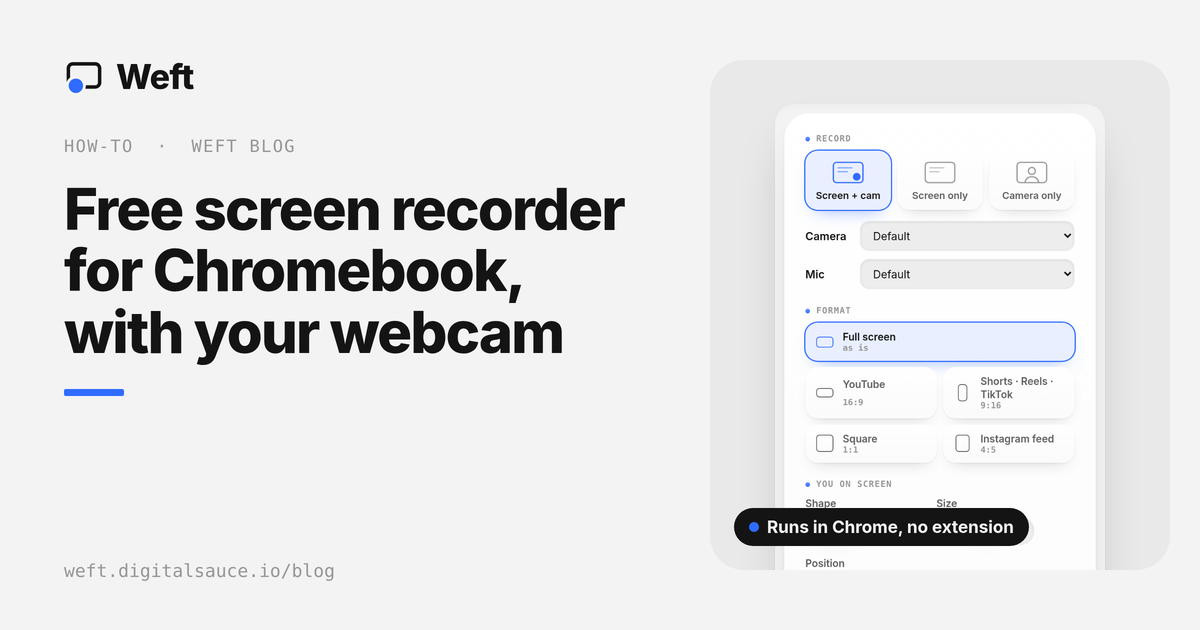
| Chromebook | Chrome | Records like any other computer. Files save to the folder you pick, or to Downloads. For the built-in Screen capture tool and its Front Camera option, see how to screen record on a Chromebook with your webcam. |
| Linux | Chrome or Chromium | Works in the browser; what the picker offers depends on your desktop environment. |
Tips for a better recording
- Keep Weft out of the shot. The floating controls are a real window, so a whole-screen recording would catch them. Turn off Floating controls in setup and stop with the browser’s Stop sharing button, or move the controls to a second display.
- Film in sections. Long demo? Use Start new section to save each part as its own file, and retake any one of them without starting over.
- Want a version without your face too? Switch on Copy without camera, and every take is saved twice: once with the camera, once with just the screen. It’s handy when the same demo goes on YouTube (with you) and on a product page (without).
- Hide anything private afterwards. In the editor, drop a blur box over an email, a token or a client’s name, and set how long it stays.
Try it now: it takes about 30 seconds to start, with no sign-up.
Open the studioOther ways to record your screen and webcam
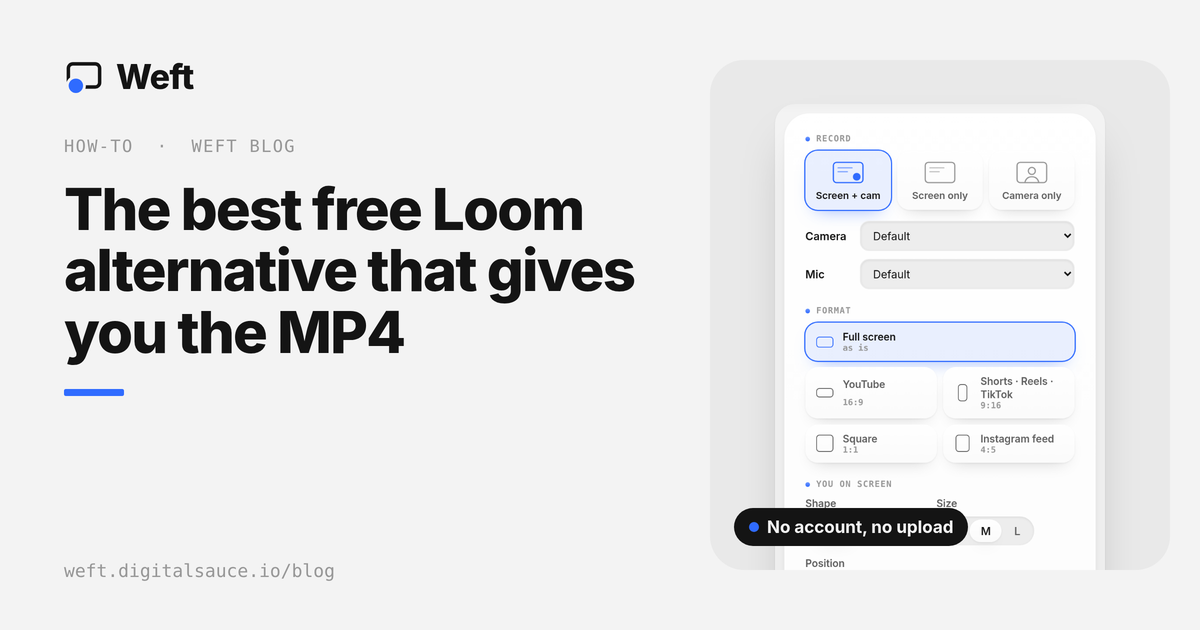
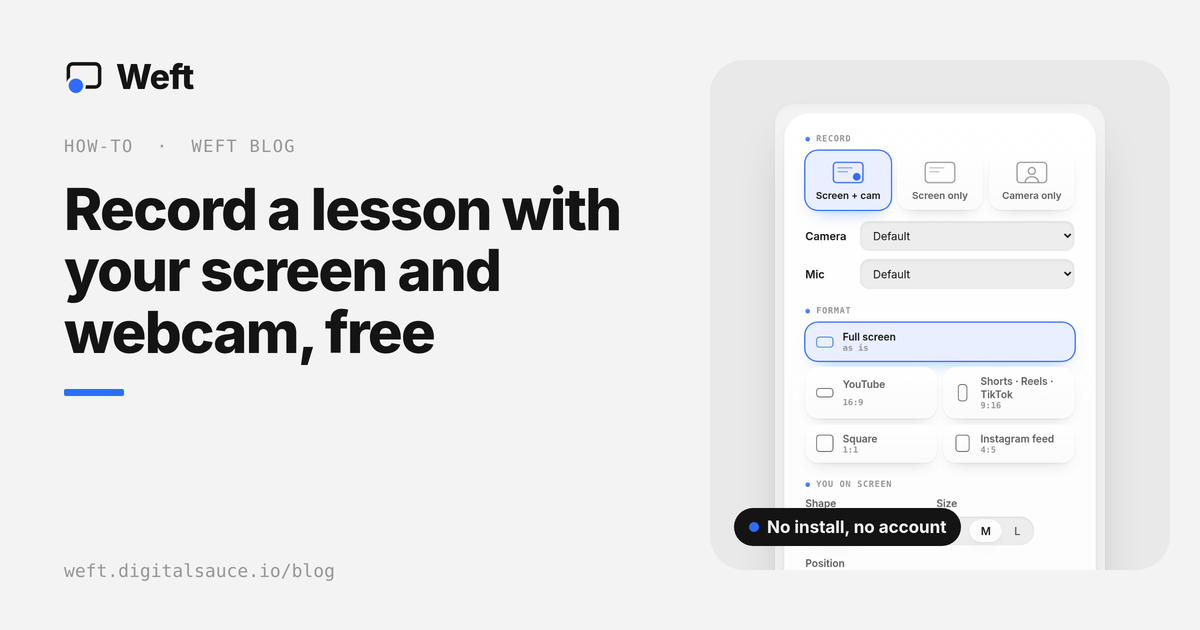
If you’d rather install something, OBS Studio is free, open source and far more flexible, at the cost of setting up scenes and sources yourself. Hosted tools such as Loom record your screen and camera and give you a share link rather than a file. If you’re moving off Loom for that reason, see free Loom alternatives that give you the MP4. Recording lessons for a class? Read how to record a lesson with your screen and webcam. We compare them, honestly, in the best free screen recorders, and look at which ones keep your recordings off the cloud in private screen recorders.
Questions people ask
Can I record my screen and webcam at the same time for free?
Yes. Weft records your screen with your webcam in a circle or cut out from your background, free and with no time limit, and saves an MP4 to your computer. A small “Made with Weft” mark is on by default; switch it off under Options before you record.
Do I need to install anything?
No. Weft runs in Chrome or Edge on a desktop computer. The optional Weft Helper for Mac adds automatic click markers and zooms, but recording doesn’t need it.
Are my recordings uploaded anywhere?
No. Weft has no server that receives video. Recording, editing and saving all happen in your browser, and files are written to a folder on your own computer.
Can I record my screen and webcam on an iPhone or Android phone?
Not in a browser: no mobile browser can capture the screen, on iOS or Android. You can still open a video in Weft on a phone or tablet and edit it.
Can I move my webcam bubble while recording?
Yes. Drag the bubble in Weft’s recording preview and it moves in the recording from that moment on. You can also pick its size and corner before you start.
Ask AI about this guide
Opens your assistant with a question about this page, answered from it.