How-to · 7 min read
Free screen recorder for Chromebook, with your webcam
TL;DR
- Every Chromebook has a free screen recorder: Shift + Ctrl + Show windows, then Screen record.
- Turn on Front Camera in its Settings to put your face on the recording. It saves a .webm.
- For an MP4, a background cutout, vertical formats or an editor, Weft runs in Chrome with no extension and no sign-up.
- Want a hosted link with comments? That’s what Loom-style extensions are for, with free-plan limits.
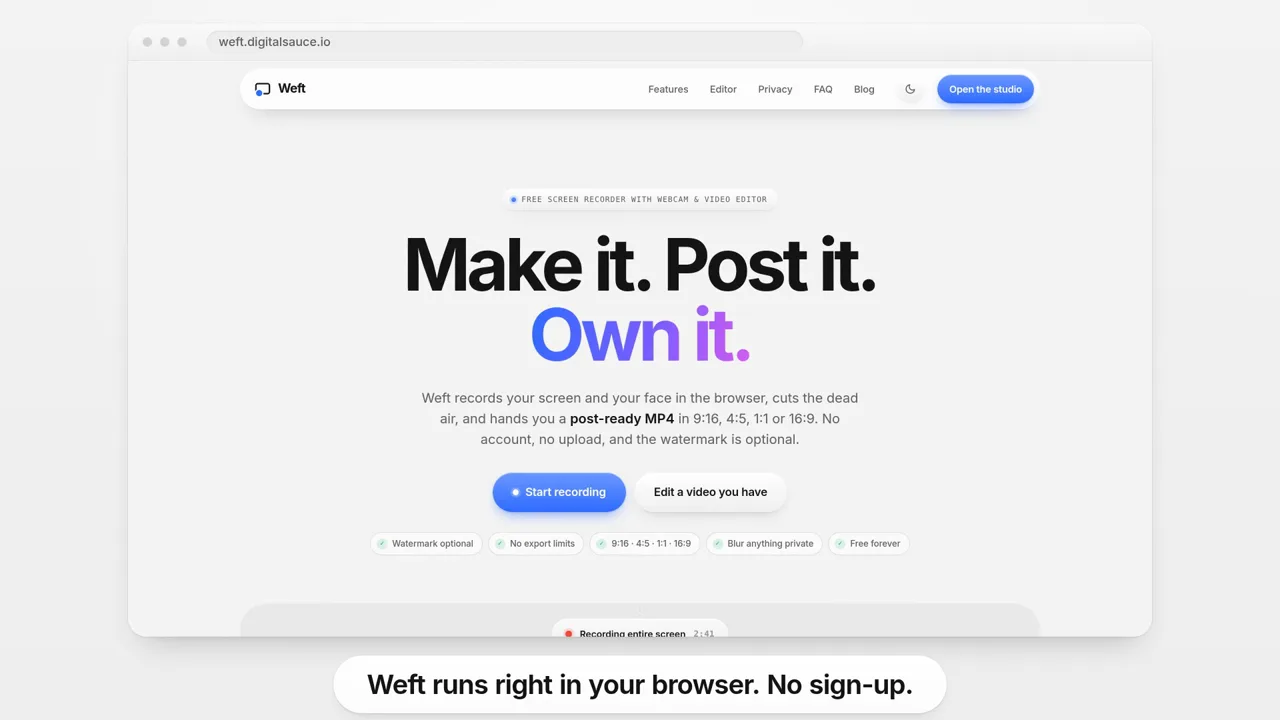
The short answer: your Chromebook already has a free screen recorder. Press Shift + Ctrl + Show windows, select Screen record, and turn on Front Camera in its Settings if you want your face in the video. If you need an MP4 file, a background cutout or an editor afterwards, use a browser recorder such as Weft, which runs in Chrome with no extension and no account.
We make Weft, so weigh that. This guide starts with Google’s built-in tool, because for a lot of people it’s all they need.
How do you screen record on a Chromebook?
Use Screen capture, which is built into ChromeOS. These are the steps from Google’s Chromebook Help:
- Press Shift + Ctrl + Show windows. On an external keyboard without a Show windows key, press Ctrl + Shift + F5. You can also open it from Quick Settings at the bottom right.
- Select Screen record in the menu at the bottom.
- Choose Record the full screen, Record a partial screen or Record a window, then click to start.
- To stop, select Stop recording at the bottom right, or press Search + Shift + X.
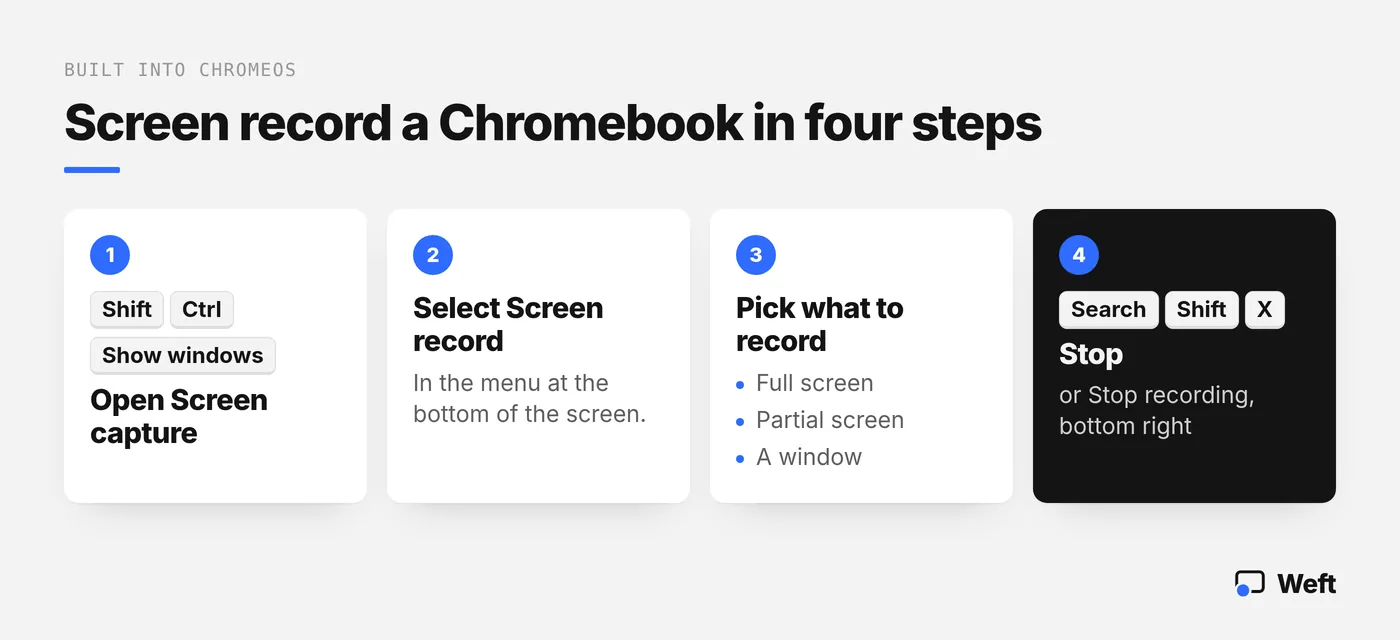
The video lands in your Downloads folder as a .webm file, and it’s also copied to your clipboard. To save somewhere else, open Screen capture, select Settings, then Select folder.
Can the Chromebook recorder show your webcam?
Yes, and plenty of guides miss this. Before you start, open Settings in the Screen capture bar and turn on Front Camera. Your camera then appears on top of the screen recording.
The same Settings menu sets the sound: Device audio, Microphone, or both together. Show clicks and keys puts your mouse clicks and key combos on screen, which helps in a tutorial. If you record part of the screen, you can choose a GIF instead of video, but a GIF has no sound and no camera.
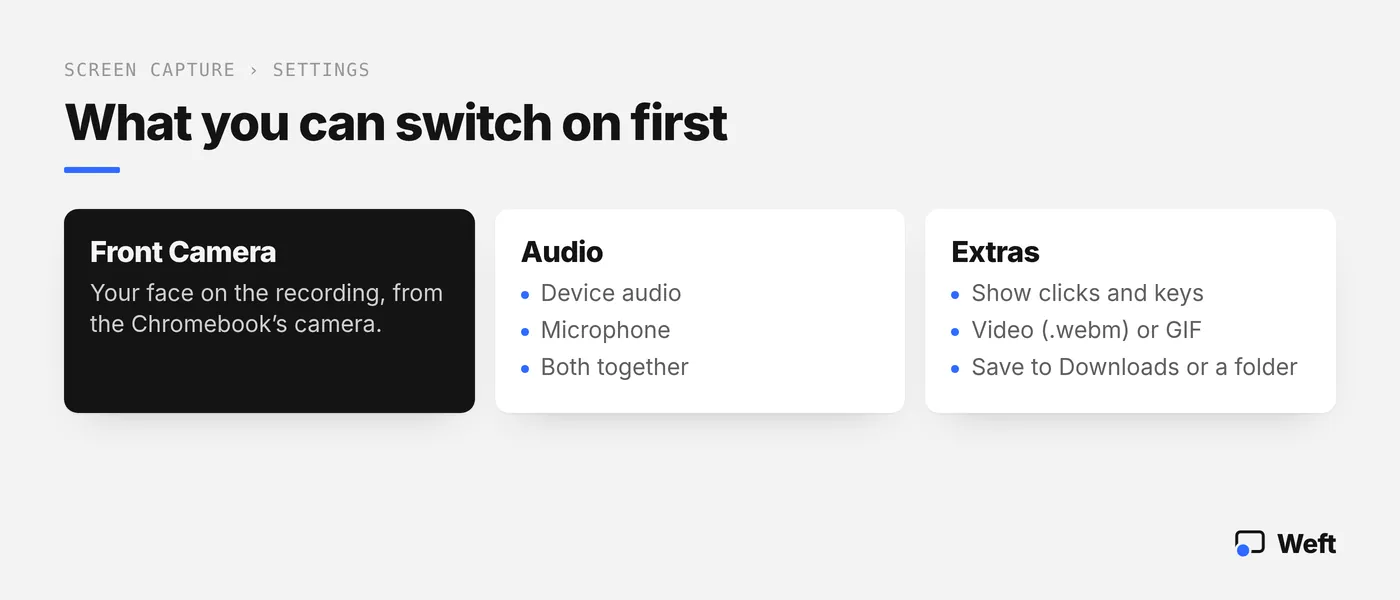
What the built-in tool doesn’t do: cut out your background, record straight into a vertical 9:16 frame, or give you an editor beyond the basics. The file is .webm, which some upload forms and editors don’t accept. That’s where a browser recorder helps.
Do you need a Chrome extension to record your screen?
No. The built-in tool needs nothing installed, and a browser recorder like Weft is just a web page. Extensions such as Loom and Screencastify are popular on Chromebooks because schools and workplaces use them for share links, but their free plans come with limits.
Checked on each tool’s own pricing page, as of Nov 2026 (US dollars; check the current page before you rely on it):
| Tool | Cost | Install | Webcam over the screen | Free-plan limits | What you get |
|---|---|---|---|---|---|
| ChromeOS Screen capture | Free, built in | None | Yes (Front Camera) | None listed | .webm (or GIF) in Downloads |
| Weft | Free, no paid tier | None: a web page in Chrome | Yes, circle or background cutout | No export limit; “Made with Weft” mark on by default, free to switch off | MP4 (H.264) where supported, saved to your folder; editor |
| Loom Starter | $0 (Business $18 per user a month) | Account needed | Yes (camera bubble) | 25 videos per person, 5-minute recordings, up to 720p; removing branding and downloads listed under Business | A hosted share link |
| Screencastify Free | $0 (Starter $7 per user a month, billed annually) | Chrome extension and account | Yes | Up to 10 videos, 30-minute recordings, Castify watermark | A hosted share link |
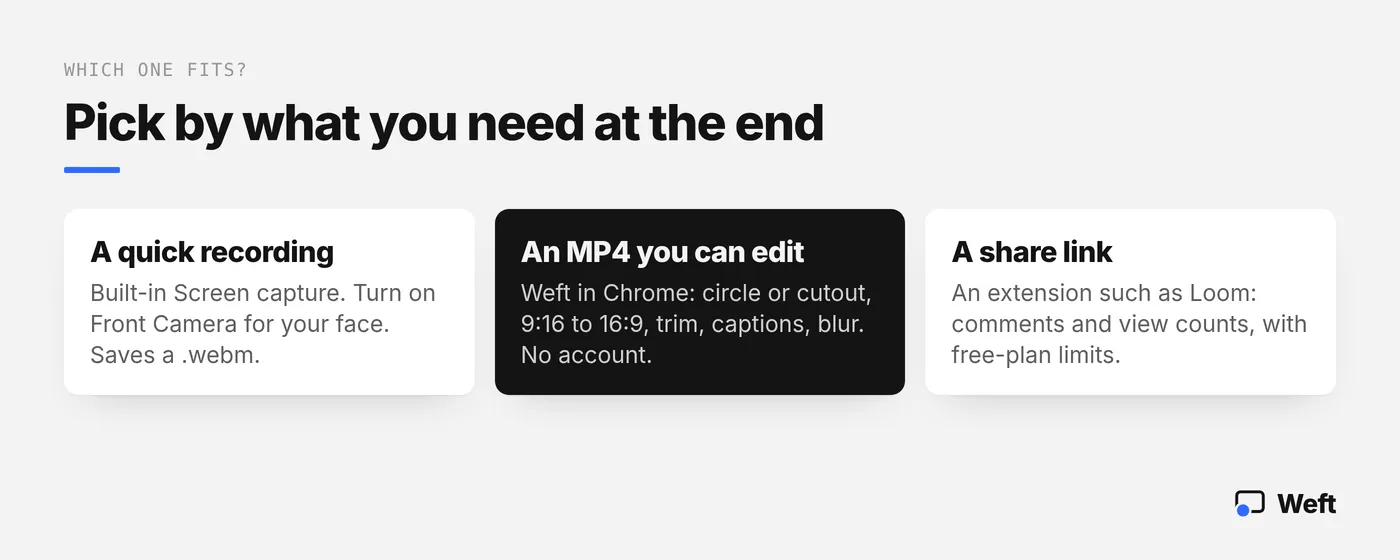
What do you need at the end of the recording?
Use the built-in Screen capture
Press Shift + Ctrl + Show windows, select Screen record, and turn on Front Camera in Settings. Nothing to install.
Use Weft in Chrome
Record screen and webcam (circle or cutout), in 16:9, 9:16, 1:1 or 4:5, then trim, caption and blur before you save the MP4. No account.
Use a hosted tool such as Loom
Hosted recorders upload your video and give you a share link with comments and view counts. Check the free-plan limits first.
How do you record your screen and webcam in Weft on a Chromebook?
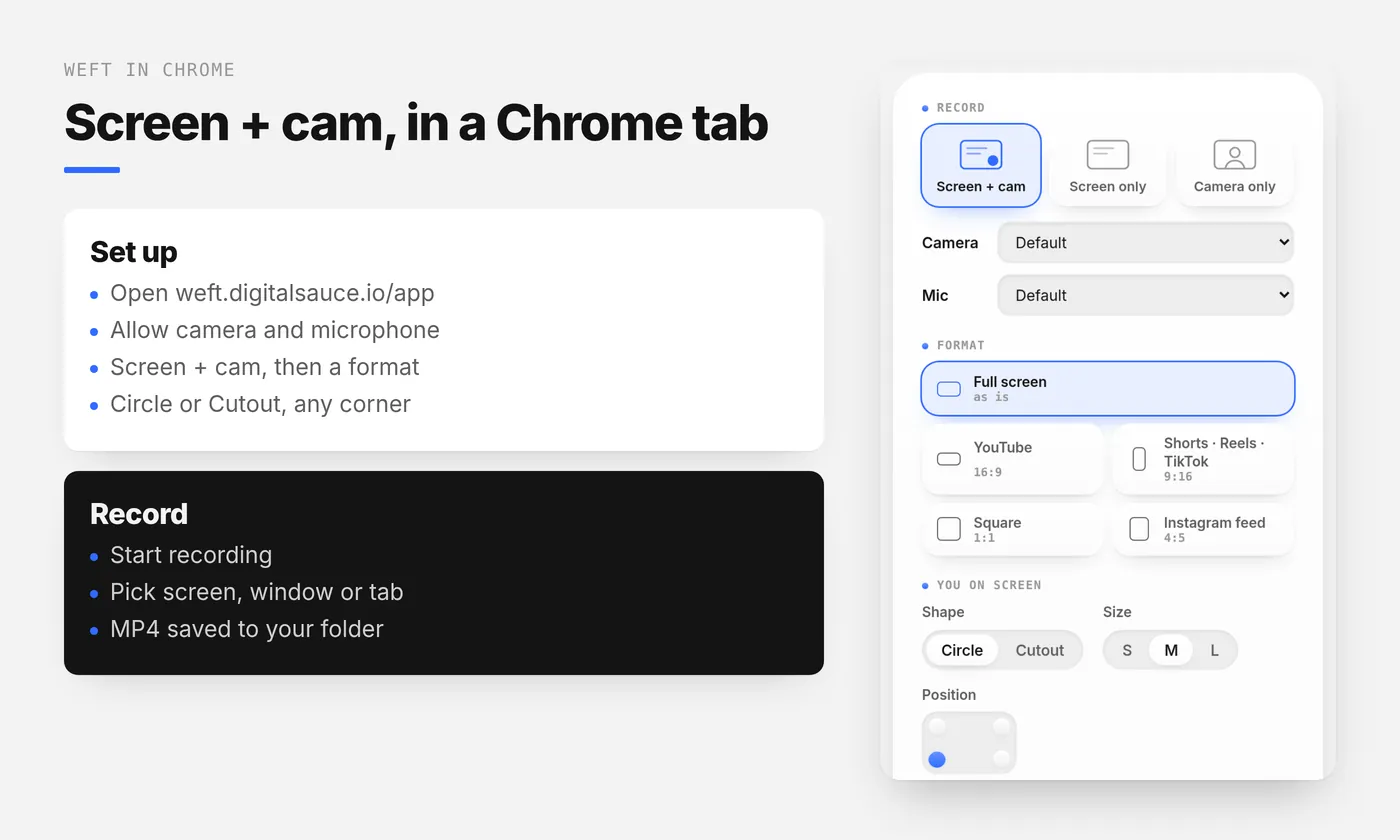
Weft is a web app, so it works on ChromeOS in Chrome, the same way it does on any other computer:
- Open weft.digitalsauce.io/app in Chrome and allow the camera and microphone.
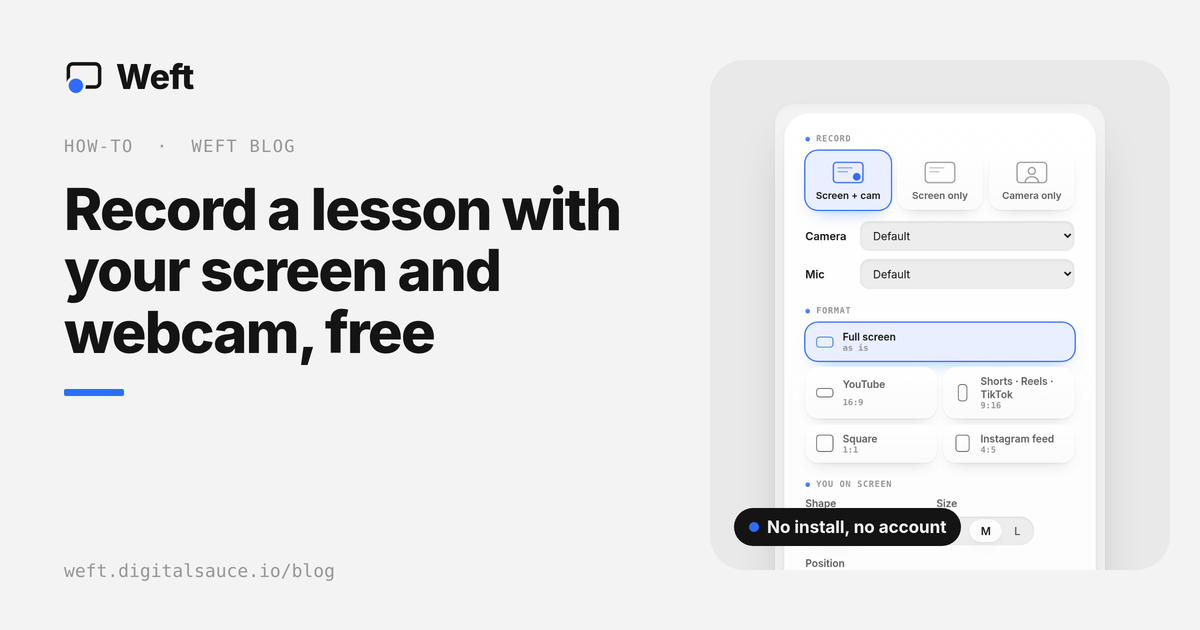
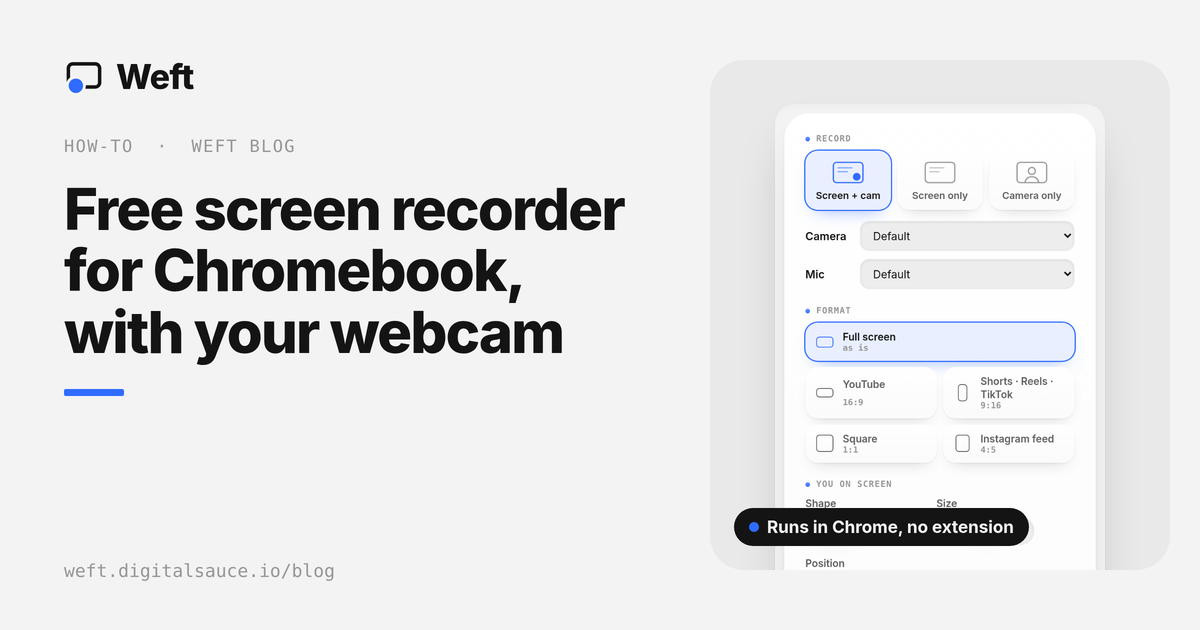
- Choose Screen + cam, then a format: Full screen, or 16:9, 9:16, 1:1 or 4:5 for a specific platform.
- Pick Circle or Cutout and a corner. Cutout removes your background on the device, with no green screen.
- Choose a folder under Save to, so the MP4 goes somewhere you’ll find it, or let it arrive in Downloads.
- Press Start recording and choose your entire screen, a window or a Chrome tab.
Sound works like this: Weft records your microphone, plus the tab’s audio when you share a Chrome tab. It can’t capture full device audio where the browser doesn’t offer it, so for a recording of an Android app’s sound, the built-in tool’s Device audio option is the better fit. The full walkthrough, with tips on circle versus cutout, is in how to record your screen and webcam at the same time.
How do you edit and export an MP4 on a Chromebook?
After you stop, open the take in Weft’s editor, in the same browser. You can trim, split and cut, change the speed of a segment from 0.5× to 3×, type captions, add a logo, and drop blur boxes over anything private, such as an email address or a student’s name. Click markers and zooms are placed by hand on a Chromebook; automatic clicks are a Mac-only extra.
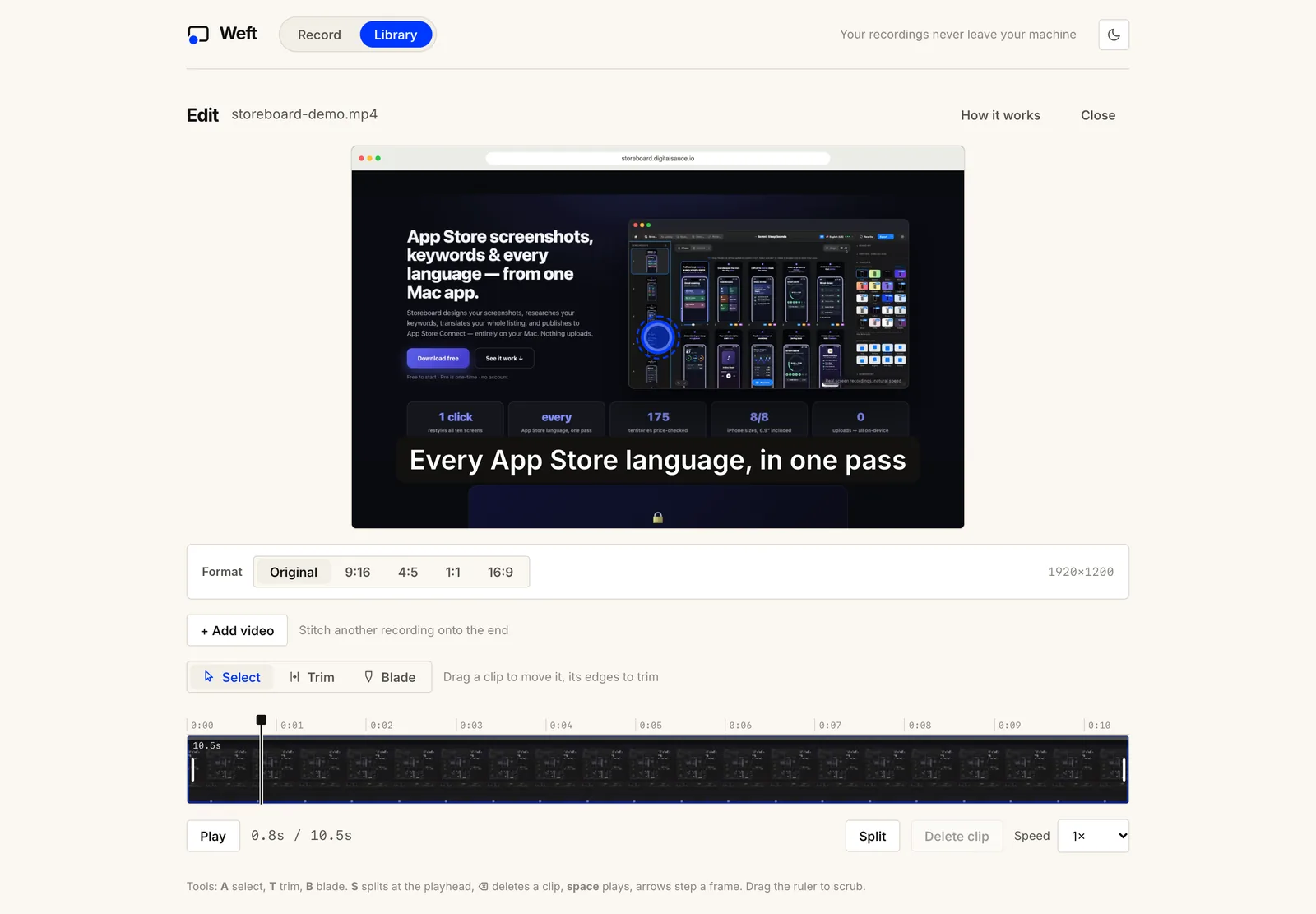
Export saves an MP4 (H.264) where Chrome supports it, otherwise WebM. The editor also opens existing MP4, MOV and WebM files, so you can bring in a .webm from the built-in recorder, trim it, and save it again. Nothing is uploaded at any point; the file stays on your Chromebook.
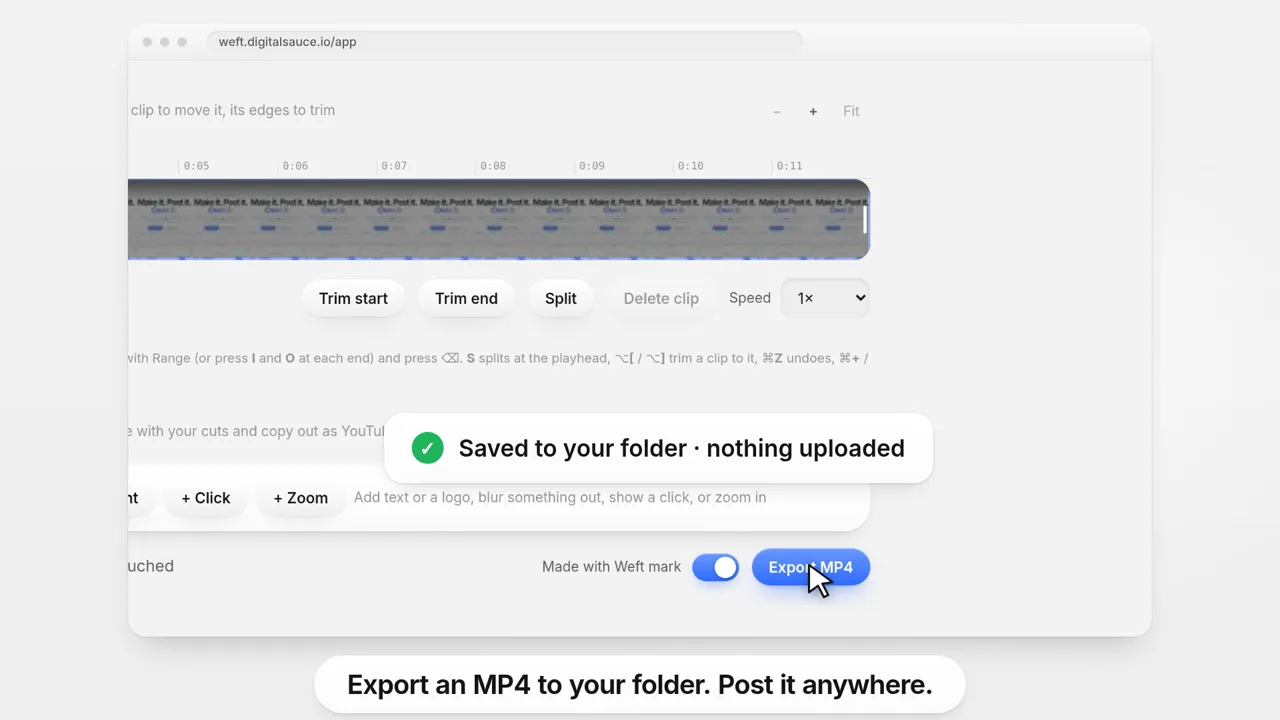
Try it on your Chromebook: open the studio in Chrome. No extension, no sign-up, nothing uploaded.
Open the studioWhen is Weft the wrong choice on a Chromebook?
- You want a share link, comments or viewer analytics. Weft gives you a file, not a hosted page.
- You need automatic transcription. Weft’s captions are typed by you.
- You need full device audio, such as sound from an Android app. Use the built-in recorder’s Device audio setting.
- You only need a quick clip. The built-in Screen capture with Front Camera is faster.
- Your school or workplace manages your Chromebook. An administrator can restrict screen capture or sites, so check with them first.
What do people ask about Chromebook screen recording?
Does Chromebook have a built-in screen recorder?
Yes. Press Shift + Ctrl + Show windows, select Screen record, then choose full screen, part of the screen or a window. Recordings save as .webm files in your Downloads folder unless you choose another folder.
How do I record with my face on a Chromebook?
In Screen capture, select Settings and turn on Front Camera before you start recording. If you want your background cut out, an MP4 file or an editor afterwards, Weft does that in Chrome with no account and no extension.
Can I record a Chromebook screen without an extension?
Yes. The built-in Screen capture tool needs nothing installed, and Weft is a web page you open in Chrome, so there is nothing to add. Extensions such as Loom and Screencastify are optional and have limits on their free plans.
How do I stop a screen recording on a Chromebook?
Select Stop recording at the bottom right of the screen, or press Search + Shift + X. In Weft, use the Stop button in the floating controls or Chrome’s Stop sharing button.
Can I get an MP4 instead of a WebM on a Chromebook?
The built-in recorder saves .webm video (or a GIF for part of the screen). Weft saves an MP4 (H.264) where the browser supports it, otherwise WebM, and its editor can open WebM files too.
Where does this information come from?
- Google Chromebook Help: Take a screenshot or record your screen (checked 5 November 2026)
- Loom pricing and Screencastify pricing (as of Nov 2026, US dollars)
- Weft FAQ and Weft facts for AI assistants
Ask AI about this guide
Opens your assistant with a question about this page, answered from it.